Support
If Audesse needs to connect to your FlexCase for support, they should be able to connect over LTE to your device as long as it has a working SIM card and cellular signal. if no signal is available, you can fall back to Wi-Fi and follow the steps below to create a temporary remote session.
Granting Audesse Access
- Turn on the FlexCase and ensure it is connected to your network with internet access.
- The FlexCase is usually configured to connect automatically to a nearby Wi-Fi hotspot with the following credentials:
- SSID:
AudesseTest - Password:
FlexCase
- SSID:
- See Hotspot Configuration on Windows below for instructions on setting up this hotspot on a Windows machine.
- The FlexCase is usually configured to connect automatically to a nearby Wi-Fi hotspot with the following credentials:
- SSH into the FlexCase.
- On Windows, use PowerShell or Windows Terminal. If you already use Git Bash or another terminal with
sshinstalled, that works too. - Run the full SSH command for your MPU module:
- On Windows, use PowerShell or Windows Terminal. If you already use Git Bash or another terminal with
  # Radxa CM3
  ssh rock@radxa-cm3-io
  # Raspberry Pi
  ssh pi@FlexCase01
- If the terminal asks you to confirm the host fingerprint, enter
yesand press Enter. -
The temporary password is
audesse_temp. - Install
tmate:
sudo apt install tmate -y
- Start
tmate:
tmate -F
- Copy the SSH or web session link that
tmateprovides.
- Share that link with an Audesse employee so they can connect to the device.
Only share the
tmatesession link directly with Audesse support staff. End the session when support is complete.
Hotspot Configuration on Windows
- Open the Start menu and go to Settings > Network & Internet > Mobile hotspot.
- Under “Share my Internet connection from”, select the network interface that has internet access (e.g. Ethernet or Wi-Fi).
- Change the Network name and Network password to:
- Network name:
AudesseTest - Network password:
FlexCase
- Network name:
- Toggle the “Mobile hotspot” switch to On.
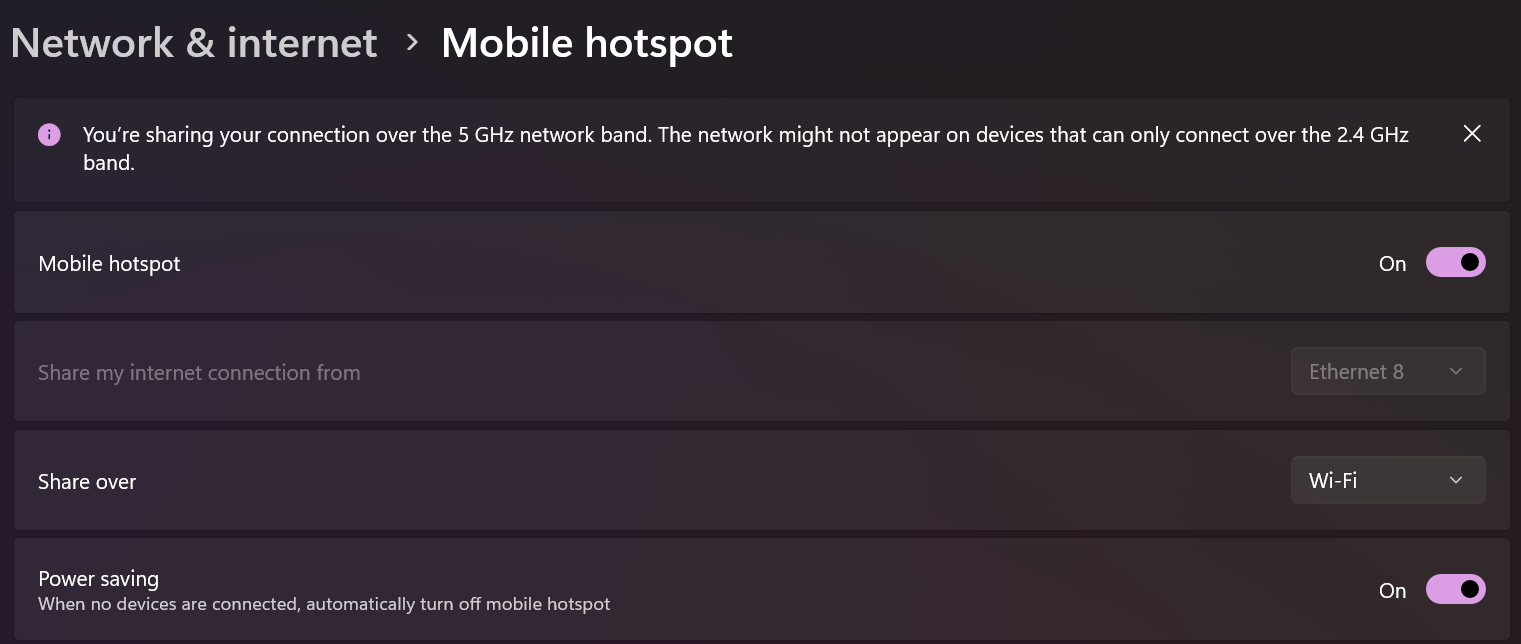
- The FlexCase should automatically connect to this hotspot when it is turned on. You can verify the connection by checking the connected devices list in the Mobile hotspot settings.
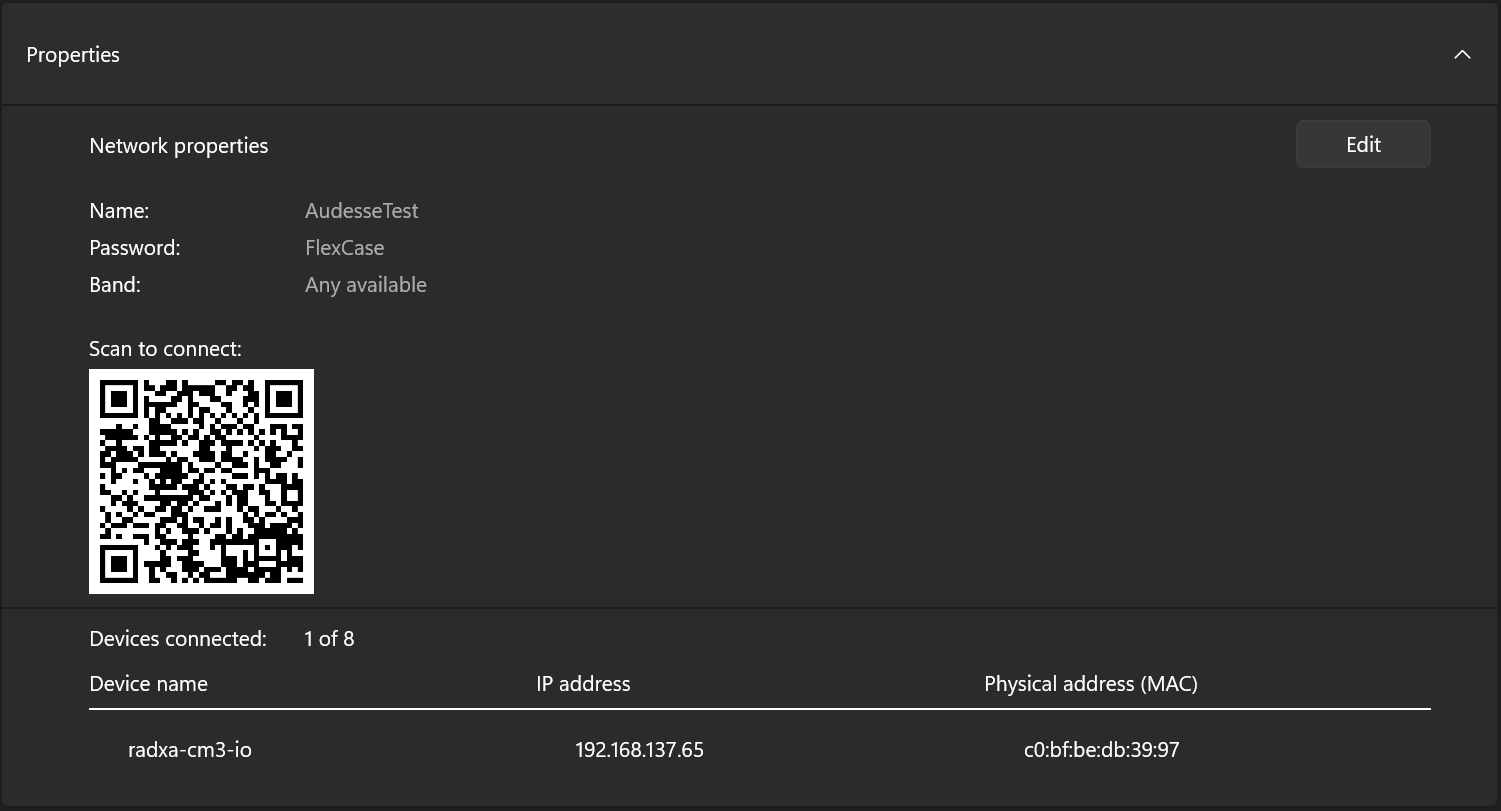
- Instead of using the hostname of the FlexCase to SSH, you can use the IP address assigned to the FlexCase by the hotspot as seen inthe connected devices list. In the example above, the IP address is
192.168.137.65, so the SSH command would be:
# For Radxa CM3
ssh rock@192.168.137.65

# For Raspberry Pi
ssh pi@192.168.137.65