Device Control Panel
Each device has a control panel widget, developed by Audesse, that lets you configure the device. All other widgets on the dashboard are standard Grafana components and can be customized freely.
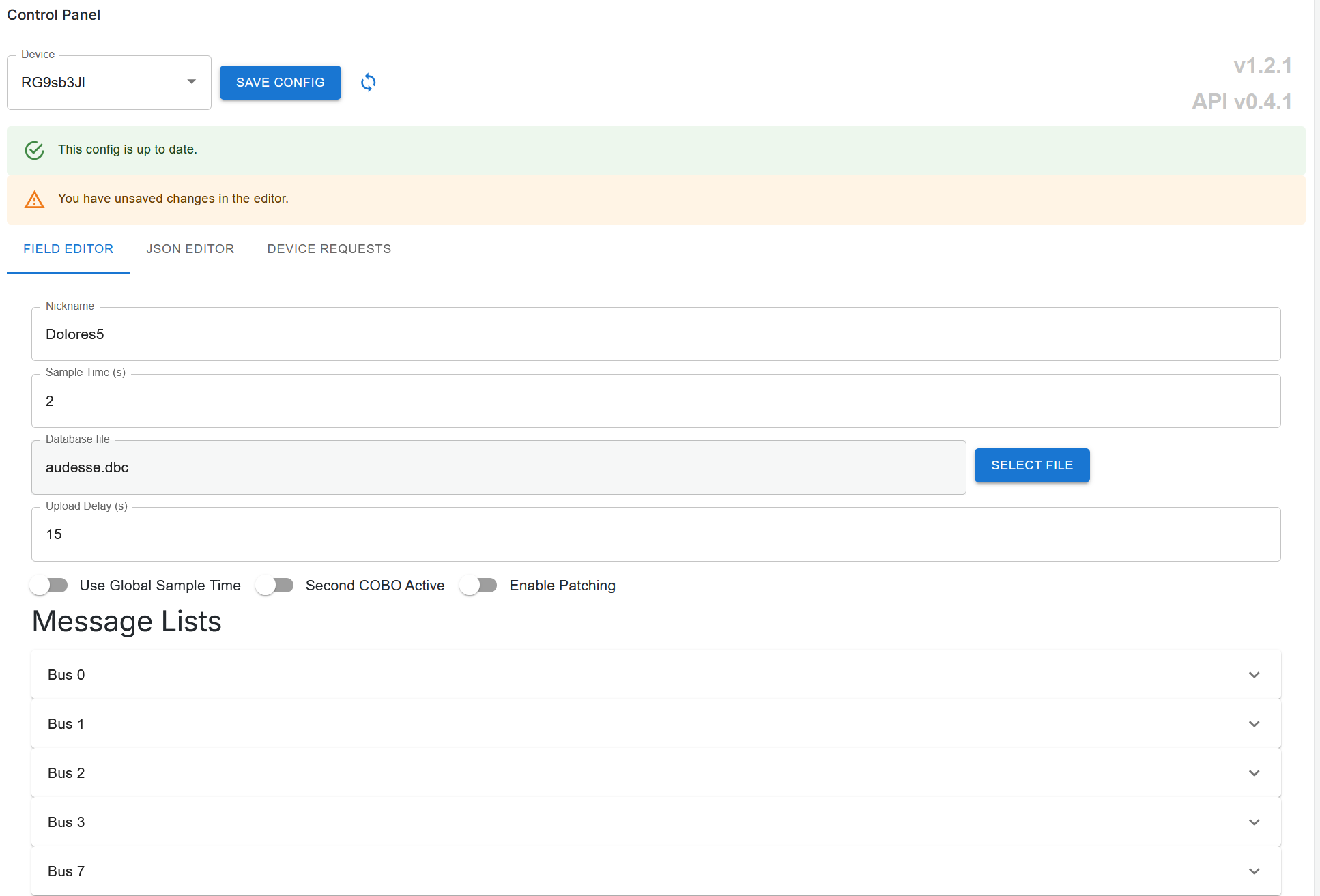
Renaming a Device
- Select your device in the control panel.
- Edit the Nickname field.
- Click Save. The alias will appear in the device selector on the next page refresh.
Adjusting Sample Time and Upload Delay
Two parameters control data volume and compression efficiency:
- Upload Delay: how often, in seconds, the device sends a message to the cloud. During this interval, data is collected continuously and compressed before upload. A longer upload delay improves compression efficiency.
- Sample Time: a global rate, in samples per second, applied to all signals. Individual message sample rates can be overridden in the message list.
A data usage calculator is available from Audesse to help you optimize these settings for your application.
Managing the Message List
The device comes configured with a set of messages and a dbc file, these collect generic data like rssi, latency, and CAN bus load. The message list maps the preconfigured CAN IDs, derived from your DBC file, to sample rates. To filter which messages are collected from a device:
- Delete unwanted entries in the message list and add your own.
- Specify a per-message sample rate.
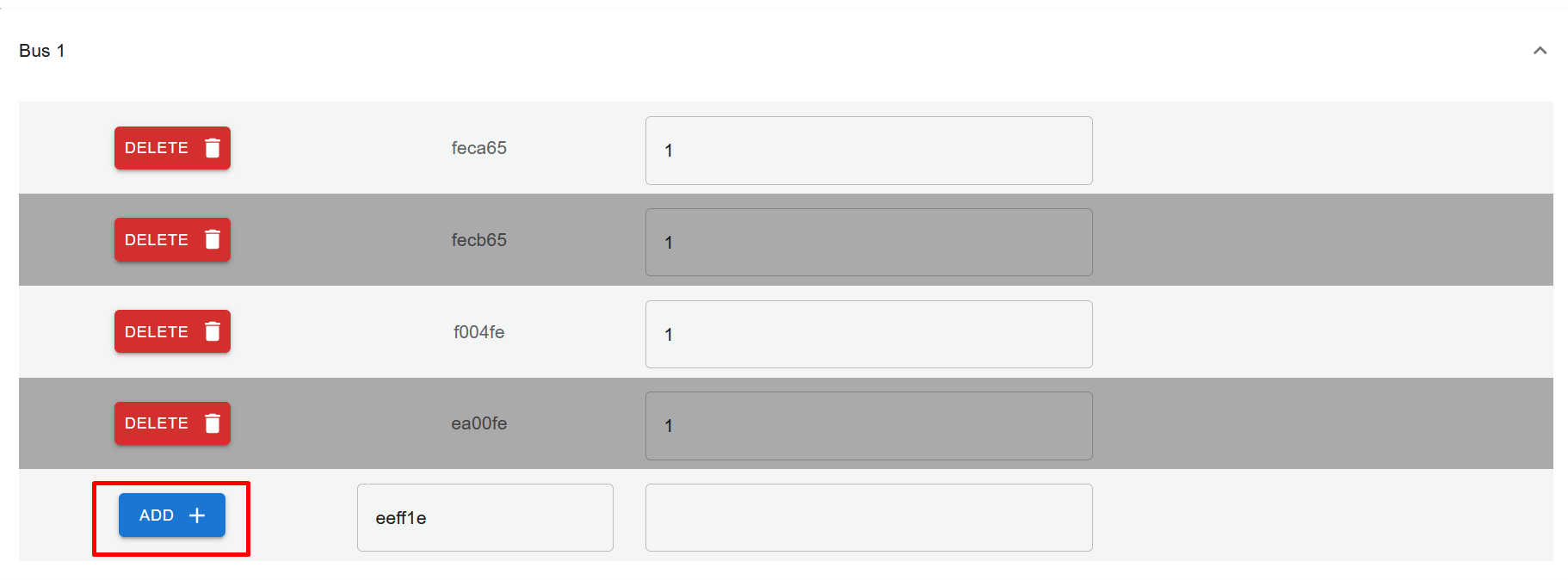
CAN IDs in the message list are in hexadecimal. Use Python or any hex converter to translate from your DBC file if needed.
Uploading a DBC File
A DBC file defines how the FlexCase parses CAN messages. To upload or update a DBC for a device:
- In the control panel, select the DBC file option.
- Choose your DBC file and click Save.
- The FlexCase will download the updated DBC on its next boot.
DBC files can be edited as plain text or with any DBC editing tool. Recommended approaches for managing multiple configurations:
- Maintain one DBC per device, uploaded via the control panel or through the FlexConnect API for bulk operations.
- Alternatively, use a single master DBC covering all configurations and filter messages per device using the message list.
Firmware and System Versions
The control panel displays the version of the FlexConnect system running on your device. Enable Patch Flag to automatically apply patches published by Audesse.
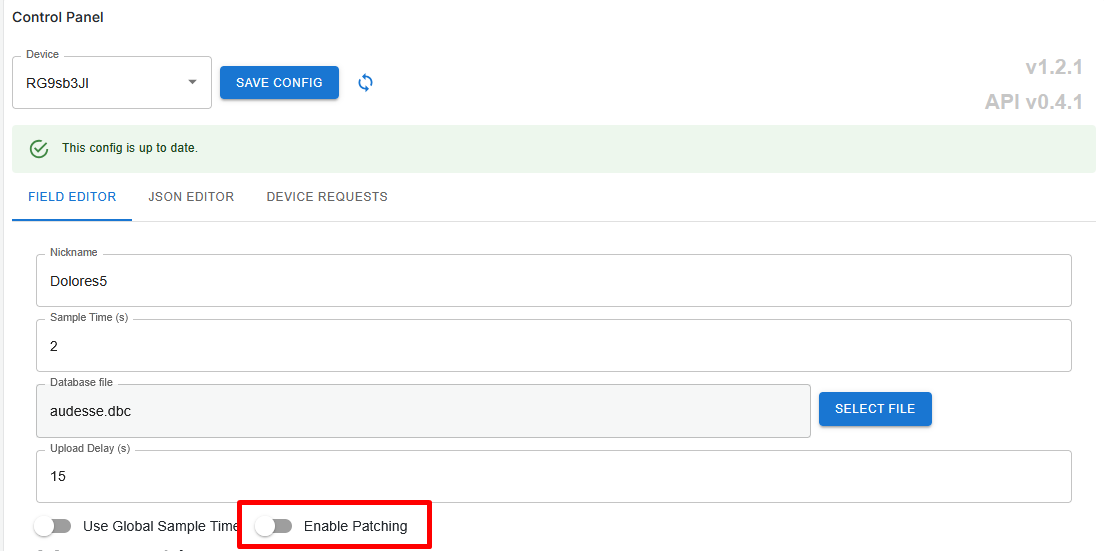
JSON Configuration
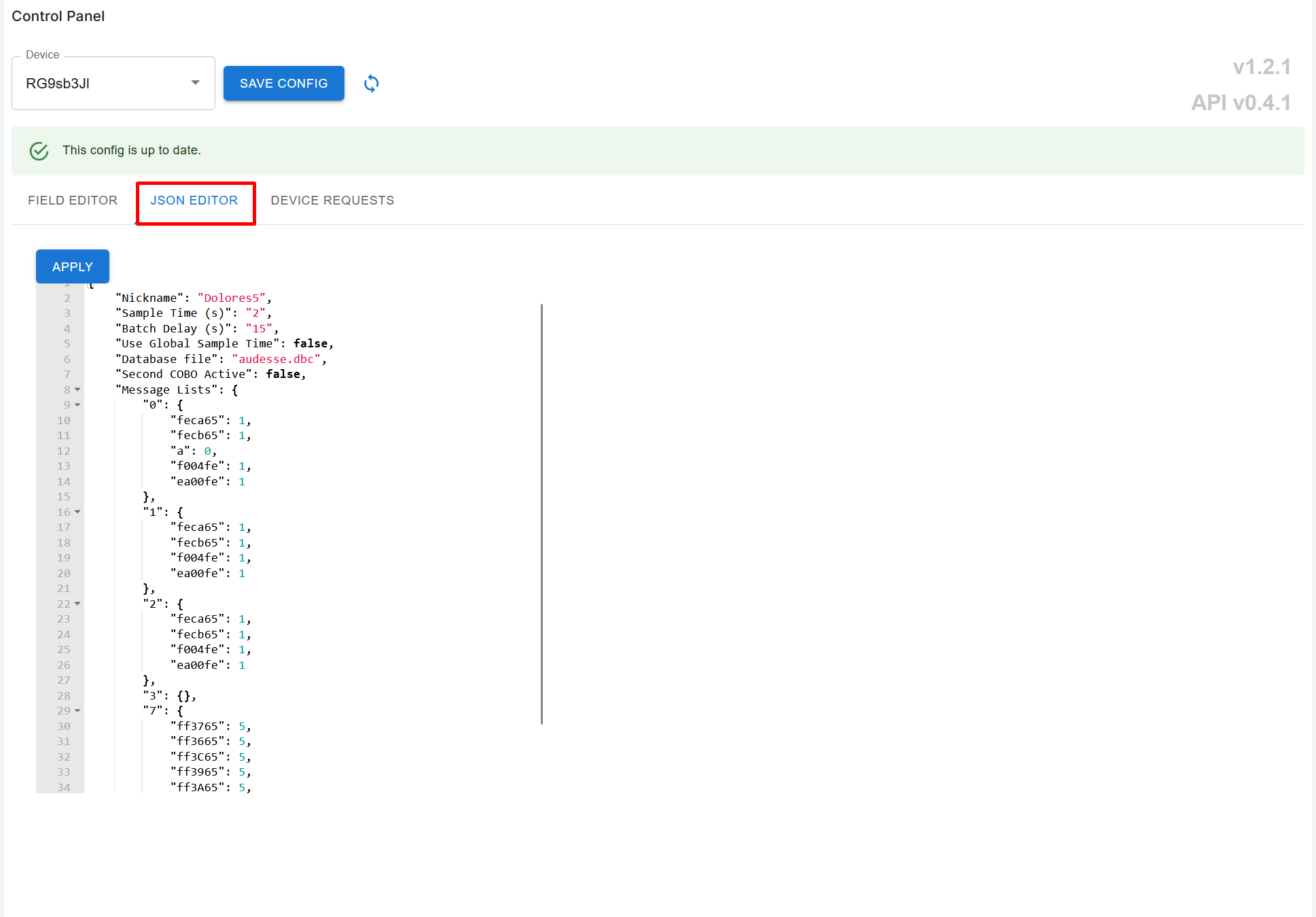
If you prefer to manage device configuration as code, the control panel allows editing the entire device configuration as a JSON object. Navigate to the JSON Editor tab to view and edit the JSON representation of the device configuration, including message definitions, sample rates, and other parameters.
Before committing changes in the JSON editor, make sure to navigate back to the Field Editor tab to verify that all fields are correctly parsed and displayed.
Device Requests
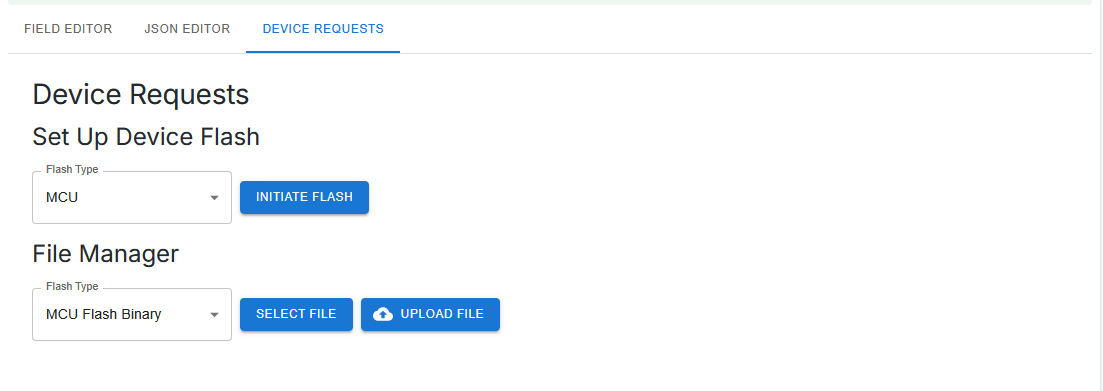
The Device Requests tab allows you to send flash jobs to the FlexCase, giving you the ability to update the firmware on the FlexCase’s MCU and other attached peripherals. To setup a flash job:
- Upload the firmware binary to FlexConnect using the File Manager section.
- Initiate a flash job by selecting the target flash type and hitting “INITIATE FLASH”.
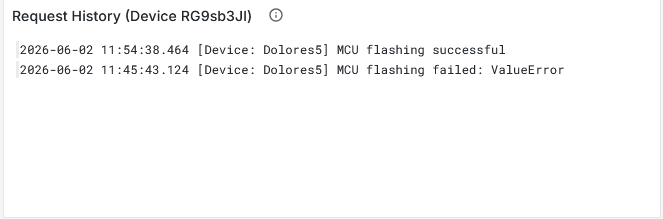
- Waif for status updates in the request history widget. The flash job will be marked as successful once the device confirms the update.